
OneSignal
Push notifications and in-app messaging — alerts, reminders, and engagement campaigns sent to your users' devices.
Why we need this
OneSignal is the service that delivers push notifications and in-app messages to your users — alerts, reminders, and engagement campaigns sent straight to their devices. Calda connects to it through the OneSignal SDK and REST API so the app can send and target messages reliably.
Like all other accounts, this one should be owned by you. Your subscriber lists, message history, and delivery reputation are tied to the account, so keeping it under your company means that data belongs to you, not us.
Do I need a credit card?
No. OneSignal's free tier requires no credit card and is enough to get started and run early beta. Creating an organization, creating apps, and inviting team members with the Admin role are all available on the free plan.
A paid plan (which does require a card) is only needed later for higher subscriber volumes or advanced features like granular per-app roles, but none of that is required for the setup below.
A note on environments
OneSignal calls each project an App. Every App has its own App ID and API keys, and a single App can't safely serve more than one environment. Because we run separate staging and production environments (and sometimes development too), we need to create multiple Apps — one per environment — all under a single organization you own.
That's why the key step below is creating an organization and giving Calda an Admin role on it: Admin lets us create and manage all the Apps we need without you having to set up each environment by hand.
Step-by-step setup
Create your OneSignal account
Sign up at onesignal.com with the email that will own the account. This creates your personal user account, which can own and be invited to multiple organizations and apps.
Create an organization
From the dashboard, open the Organizations page and click New Organization (no paid plan required), then name it after your company.
The organization is the container that holds all of your apps, team members, and billing in one place. Creating it now — rather than a single standalone app — is what lets us add the separate staging and production apps later.
Invite Calda as an organization Admin
Go to Organizations → Team Members, click Invite to Organization, and enter the Calda email we share with you.
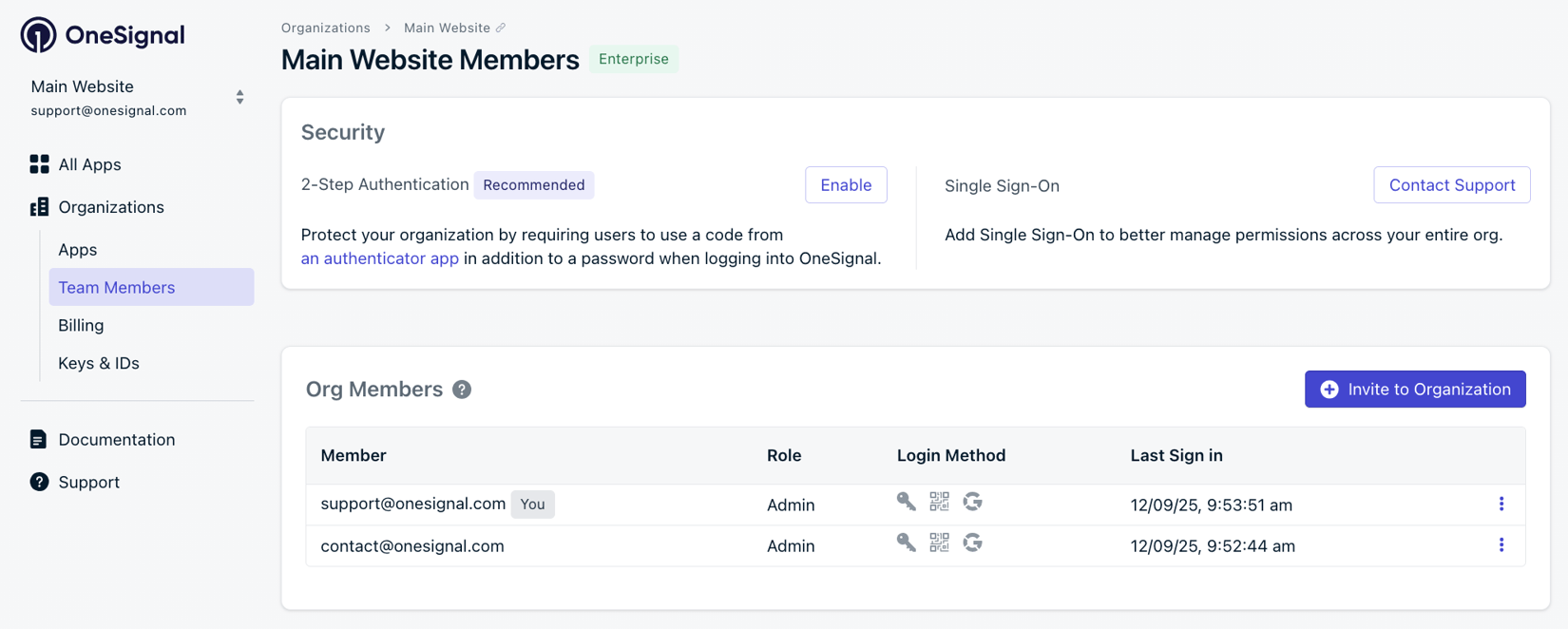
Assign the Admin role at the organization level. Admin is required — it's what lets us create new apps for each environment (staging, production, and development if needed) and manage their API keys. Lower roles like Team Member grant no app permissions on their own, so they won't let us set up the environments.
Why Admin and not a per-app role
Per-app roles in OneSignal can only add access to apps that already exist, and the granular options are a paid feature. Since we need to create the apps for each environment, an organization-level Admin role is the simplest choice and works on the free plan.
Confirm in Slack
Don't forget to notify us in Slack so we can accept the invitation and confirm that we can sign in and create the apps.
Conclusion
That is it — with an organization in place and Admin access granted, we can create the staging and production apps and start sending notifications. Once you've confirmed in Slack, we'll handle the rest of the integration on our side.
How is this guide?