
Codemagic
Continuous delivery for your mobile app — build, sign, and ship iOS and Android releases automatically. Set up the account and invite us so we can run the pipeline.
Why we need this
Codemagic is the CI/CD service that builds, signs, and ships your mobile app. Every time we cut a release it compiles your iOS and Android binaries, runs tests, and uploads the builds to TestFlight and the Google Play Console automatically — so shipping a new version is consistent and repeatable instead of a manual step on someone's laptop.
Like all other accounts, this one should be owned by you. Your build pipeline, signing configuration, and billing are tied to the account, so keeping it under your company means your release process belongs to you, not us.
Do I need a credit card?
Yes. On Codemagic, Teams is a paid feature, and we need a team so we can be added as members. When you create the team, Codemagic asks for a payment method to enable billing — so you'll need a credit card to finish setup.
The good news is that Codemagic includes a monthly allotment of free build minutes and billing is pay-as-you-go, so you're only charged once builds go beyond what's included.
Billing stays under your account
Because build minutes are a paid, usage-based service, the payment method and all build billing live under your Codemagic team. We'll help keep builds efficient so you only pay for what your releases actually need.
Step-by-step setup
Create the Codemagic account
Sign up at codemagic.io using your company email. You can sign up with GitHub, GitLab, or Bitbucket, or with a plain email and password — either works, since we'll connect the repository on our side.
Create a team
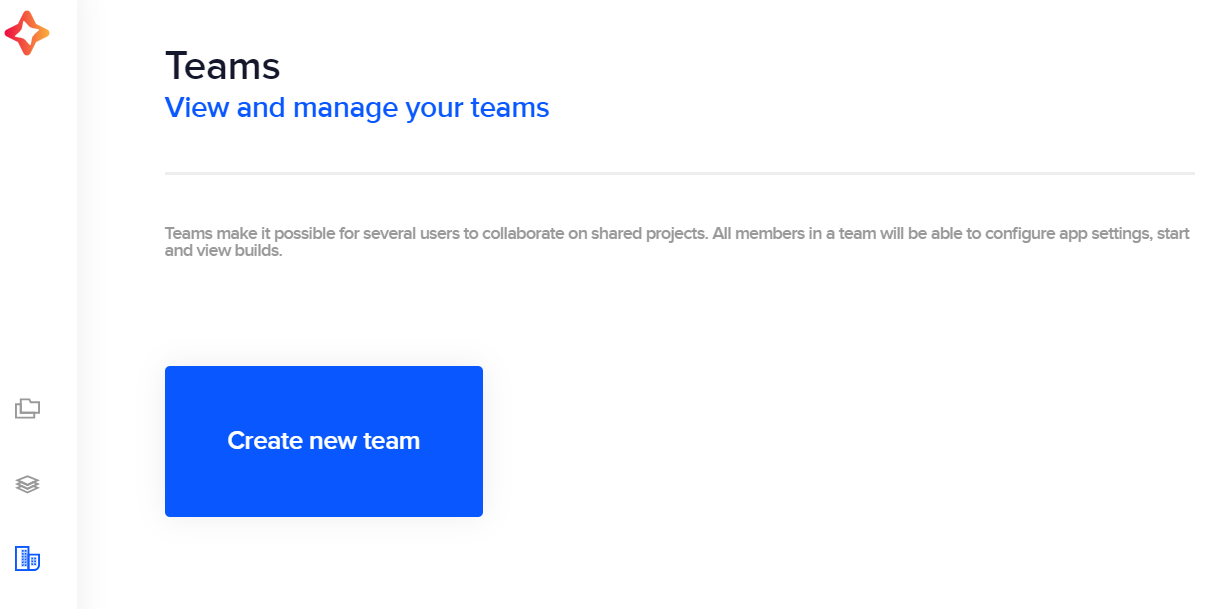
Codemagic groups your apps, billing, and members under a team. Open the Teams page from the left navigation and click Create new team.
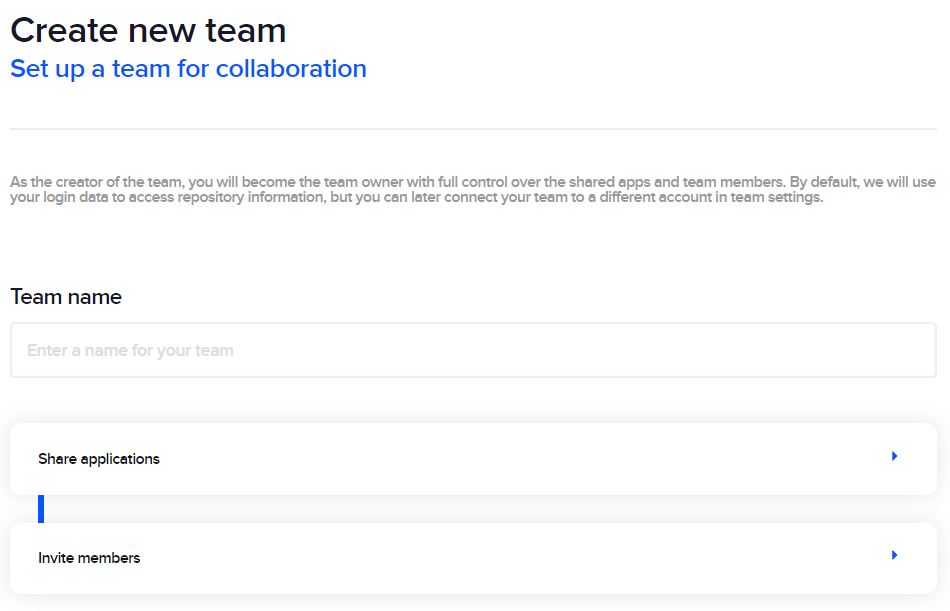
Give the team a name after your company, then continue through the prompts — Codemagic will ask you to add payment details to enable billing for the team.
Why a team and not a personal account
Team accounts let us be added as members and keep billing and apps in one place under your company — a personal account can't share access the same way.
Invite Calda
In your Team settings, find the Team members section and click Invite team member, then enter the Calda email we share with you. Codemagic emails us an invitation to join the team.
Give us the Admin role (previously called Owner) so we can configure the build pipeline, connect your repository, and set up code signing and publishing.
Confirm in Slack
Don't forget to notify us in Slack so we can accept the invitation and confirm that we can sign in.
Conclusion
That is it — with this access we can set up the full build-and-release pipeline on your own Codemagic account. Once you've invited us and confirmed in Slack, we'll handle connecting the repository, code signing, and store publishing on our side.
How is this guide?
Shorebird
Over-the-air code push for your Flutter app — set up the account and invite us so we can ship updates without an app store release.
Expo (EAS)
Cloud builds and store submissions for your mobile app — compile iOS and Android releases, manage signing certificates, and publish without a build machine of your own.